Before the concert, identify the exact light stick version and look for instructions published by the manufacturer, official store, or event organizer. Only attempt a firmware update, Bluetooth pairing, or seat registration when one of those sources says your model supports the feature and names the corresponding app. The available Weverse pages confirm a fan platform, shopping, and event services, but they do not document a universal light stick procedure.
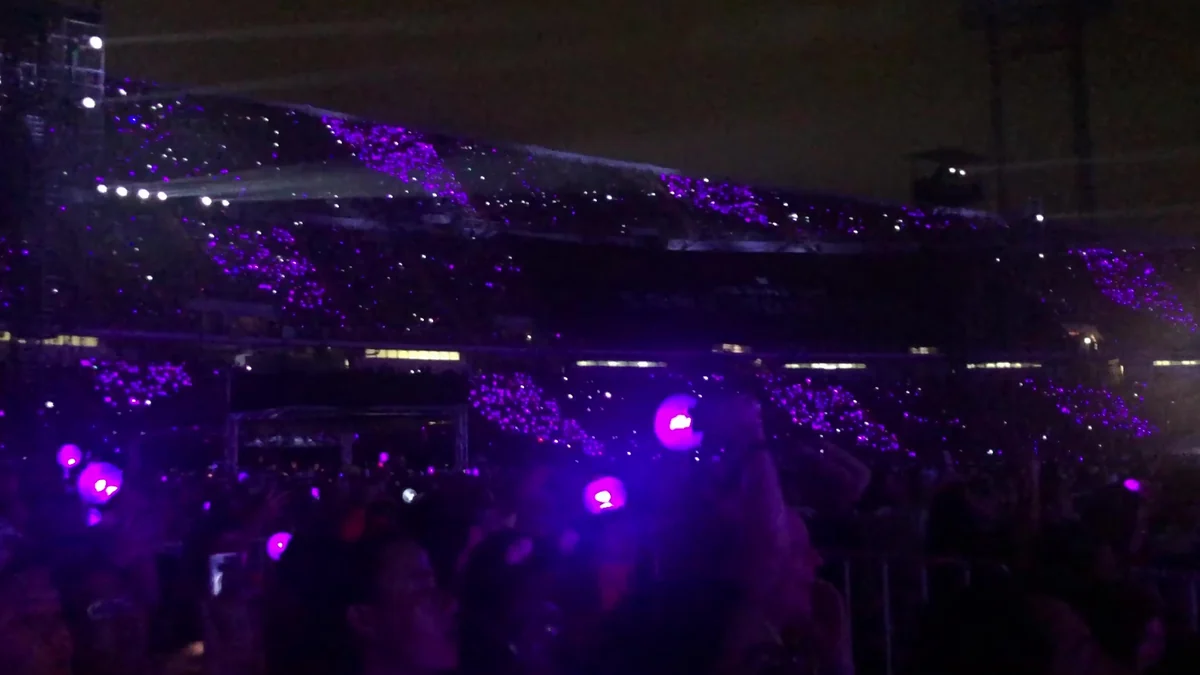
Start with the model, not a familiar app
Light sticks from different groups—and even different versions of one artist’s product—should not be treated as equivalent devices. Check the full name, version, and any code printed on the packaging or device. Compare that information with the store listing and the artist’s official channels.
Weverse Shop describes itself as a store for official products, including artist merchandise, but also says that some items are offered by third-party sellers and that it acts as an intermediary in those cases. A product’s presence on the platform is therefore not enough to establish which app controls it, what functions it has, or whether it is compatible with a particular concert. Open the item’s own page and check the current terms through the official link.
Do not install an app merely because it uses the group’s name, the word “official,” or artwork resembling the packaging. The appropriate source is the manual, the official product page, or an event notice that provides the software’s name and link.
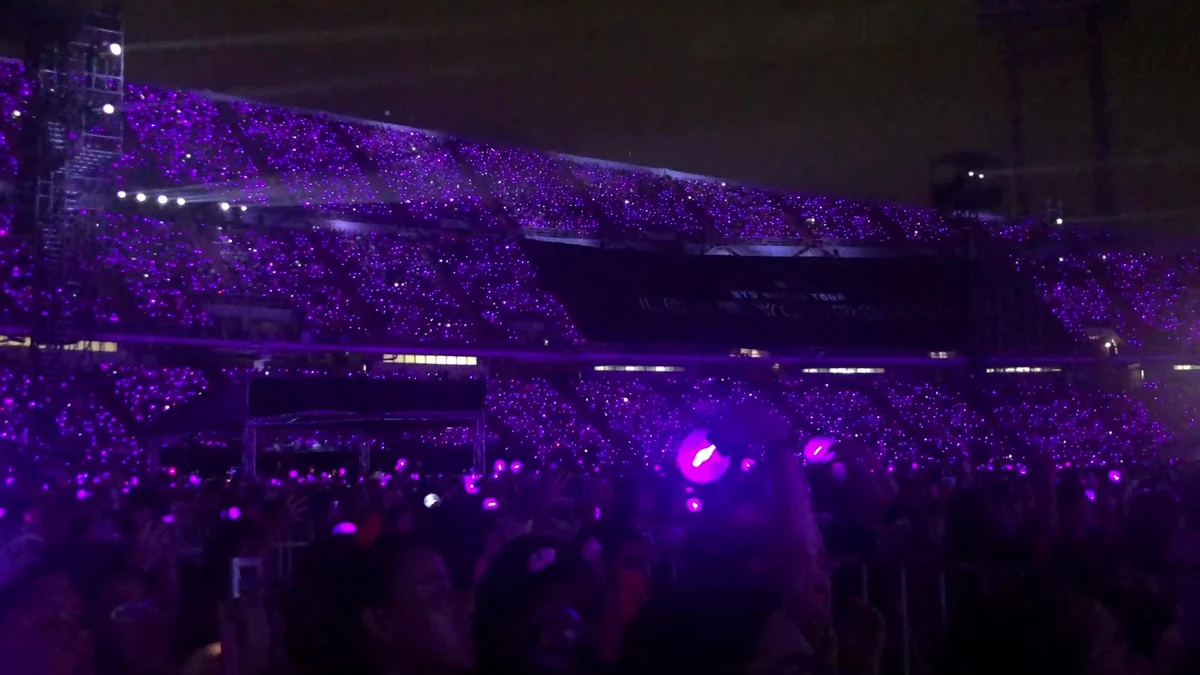
Weverse is not a universal light stick manual
The verified app pages describe Weverse as a platform for communities, posts, live streams, media, shopping, and in-person experiences. In the US App Store, the developer is identified as WEVERSE COMPANY Inc.; the listing also describes a Shop tab and a Spot area for offline-event details and features. The Google Play listing presents the same broad functions and records an update on October 1, 2026.
Neither listing, however, provides instructions for updating light stick firmware, completing Bluetooth pairing, registering a section or seat, or testing synchronized lighting. Do not treat Weverse’s existence as evidence that it controls your device. The required app may vary, or the model may offer no phone integration.
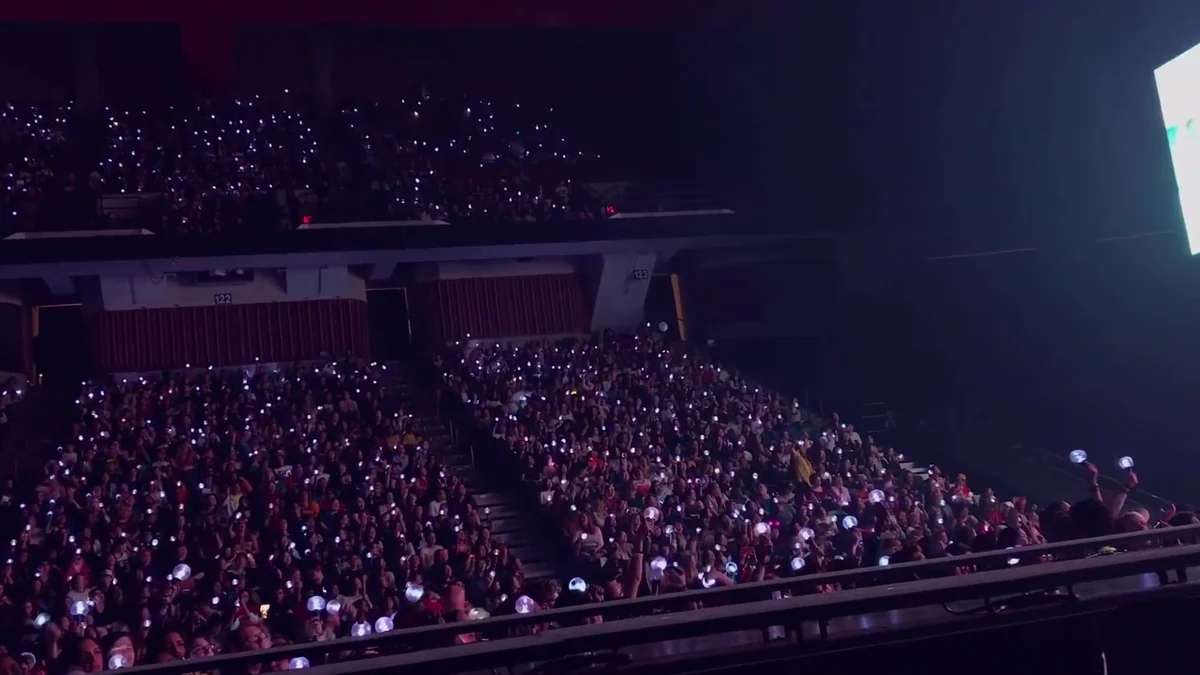
Verify updates and pairing without guessing
If official documentation specifies an app, first verify the developer’s name and follow only the sequence shown in the manual or software. Check that the instructions cite your exact light stick version. Do not transfer commands found for another group, product generation, or operating system.
App stores can help confirm identity, update date, and permissions, but they do not replace the accessory manual. The Weverse pages for iOS and Android, for example, list optional permissions including camera, location, notifications, microphone, and local network access; they do not mention Bluetooth or light stick control. Those pages alone cannot support attributing a pairing process to Weverse.
When no model-specific official instruction exists, restrict testing to the physical functions documented in the product manual, such as switching it on and observing documented controls. Do not attempt firmware updates by trial and error, connect the device to unconfirmed apps, or treat any illuminated light as proof of concert integration.
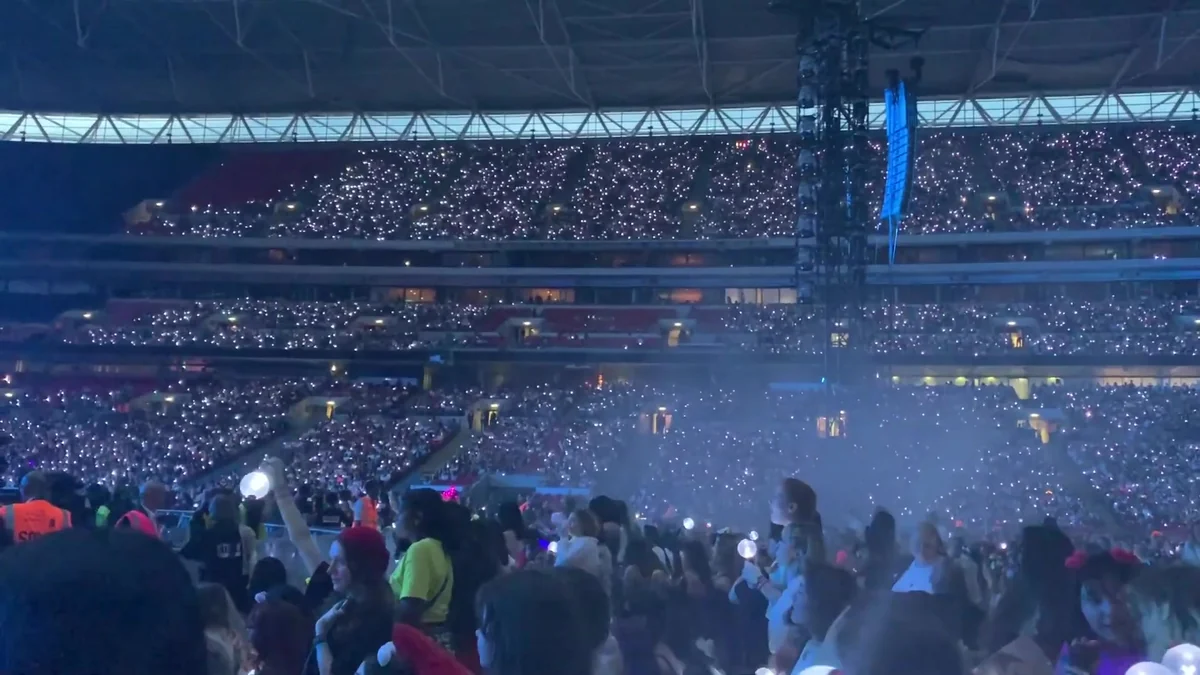
Seat registration depends on the event
A local phone connection, when officially supported, does not prove that collective synchronization will operate in the venue. Likewise, the absence of a section or seat screen does not establish a fault. The feature must appear in the concert instructions, together with the data and app required for that performance.
The Spot area described in Weverse’s store listings gathers information and offline-event features such as queues, pickup, and saved QR codes. The descriptions do not say that Spot registers seats or controls light sticks. Consult the specific artist or production notice, and do not reuse information from another date or city.
If no official announcement mentions integration, take the device expecting only the standalone functions confirmed by its manual. Coordinated lighting seen at other concerts does not prove that the same system will be available at yours.
Separate device faults from production features
Before leaving, complete three documentary checks: exact model, designated app, and event-specific notice. Then perform only the manufacturer’s prescribed test. If the device does not switch on in the basic mode described by the manual, the issue may concern the product or its power source; consult the appropriate official support. The available sources do not justify prescribing battery replacement, resets, removal of old pairings, or any other universal fix.
If basic operation is normal but there is no pairing or seat option, return to the documentation: the feature may not exist on that version or may only be enabled under conditions announced by the production. If a local connection works but coordinated lighting does not appear at the venue, contact official event support. Do not change settings based on another artist’s instructions.
Final checklist before you go
Keep the manual, official product page, and concert notice available. Confirm that all refer to the same version and that the app came from an official link. In the app store, verify that the developer matches the named company and read the permissions before accepting them. Install an update only when the specific instructions require it, allowing enough time to finish without improvising.
This method does not promise compatibility. It prevents the features of one platform, model, or concert from becoming a supposed rule for all K-pop events. Apps, products, and event conditions can change, so check the official links again close to the performance date.
Discover Becoartes
Visit [Becoartes](https://becoartes.com/) at Rua Gonçalo Afonso, 99, Vila Madalena, São Paulo.
Becoartes - Beco do Batman
99 Gonçalo Afonso Street, Vila Madalena, São Paulo