To find out which languages are actually available on Netflix, open the movie or series on the device you intend to use, start playback, and check Audio & Subtitles. This should be done for each title and viewing context: the list may vary according to your location, profile language settings, the content itself, the device, and whether a download exists. Finding a dub on one title or device therefore does not guarantee that it will appear elsewhere.

How to check before continuing playback
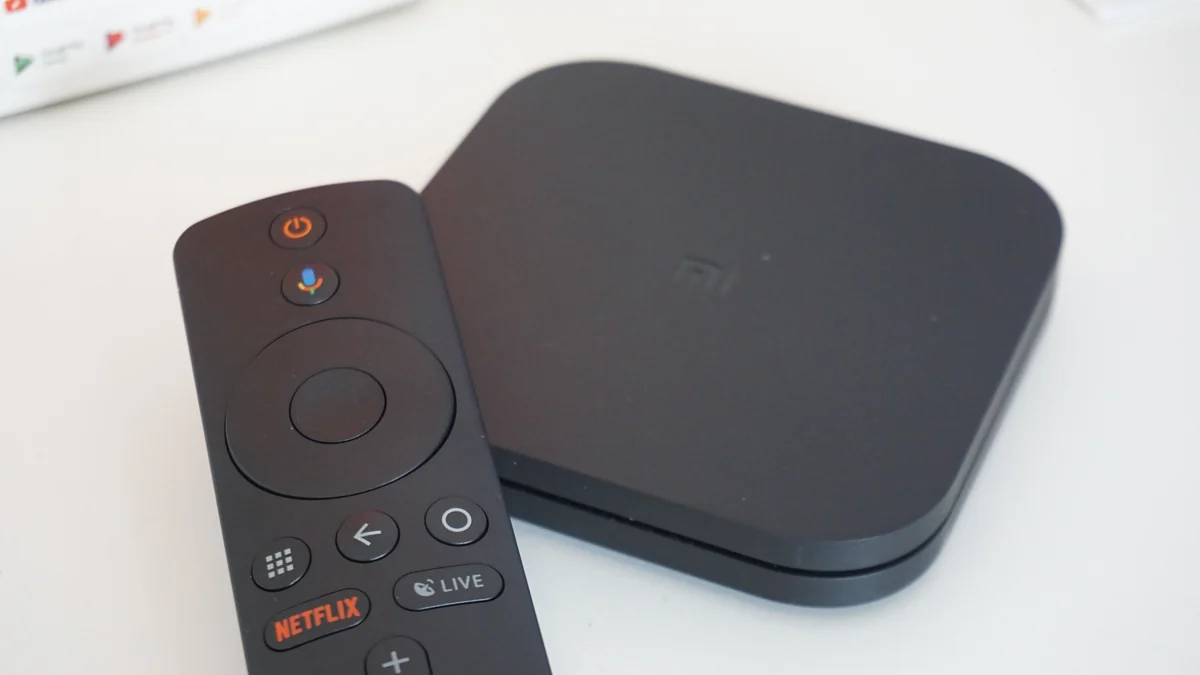
Netflix’s official guidance is to start the title and open the player controls. On phones, tablets, and computers, tap or click the screen. On smart TVs, Blu-ray players, cable boxes, game consoles, and streaming media players, press the up or down arrow on the remote. On Apple TV, swipe up or press the up arrow.
Next, select Audio & Subtitles at the top or bottom of the screen. On TVs, the options may appear at the bottom without an icon. Choose one of the displayed languages or, when available, select Other to view the full list. This procedure, described by the Netflix Help Center, provides the most useful confirmation because it shows the options for that title on the device being used at that moment.
If you are still deciding what to watch, Netflix also says you can search directly for titles with a specific audio language—for example, English-dubbed productions. Even so, confirm the track in the player before planning a viewing session or downloading the title.
Why a language may disappear
A missing dub or subtitle does not necessarily indicate an app error. According to Netflix’s page on language availability, the options may depend on five factors: location, profile language preferences, the selected movie or series, the device, and licensing or production agreements.
This explains why two people may see different menus for the same title, or why a track previously displayed may not be available in another situation. Profile settings help Netflix decide which languages to show, but they do not create a track that has not been made available for that content. The platform allows users to change display text, audio, and subtitle settings separately, as summarized on its Netflix language settings page.
Because availability and agreements can change, check the official link and the player again whenever a language choice is essential.
Streaming and downloads may not show the same list
There is an important difference between watching while connected and playing a downloaded file. During streaming on a supported device, Netflix says it displays every language available for the title. For downloads, however, it shows the two languages considered most relevant.
The restriction can also apply when the device is connected to Wi-Fi and the title has already been downloaded: only the two most relevant languages may still be displayed. If you need to see more options, Netflix’s official guidance is to delete the download and try selecting audio or subtitles again. Before deleting it, remember that you will have to download the title again if you want to watch offline.
In practice, choose your audio and subtitles before traveling or losing your connection. After downloading, open the title and confirm that both desired tracks appear in the menu; do not assume that every streaming option was included in the downloaded file.
Subtitles, closed captions, and SDH are not equivalent
Standard subtitles may contain dialogue only. SDH—subtitles for the Deaf and hard of hearing—may add context for sounds and music. Netflix advises viewers to look for the SDH badge on a title’s details page, while noting that this option may not be available for every season or episode.
When SDH is unavailable, the service may default to subtitles containing dialogue only. Subtitles may also appear even when the subtitle setting is off if a production includes dialogue in a language other than its original language. These cases should not automatically be treated as errors.
For a specific need, check the track label rather than the language alone. “English” and “English (SDH),” when displayed, indicate different experiences.
How to adjust readability and save preferences
The appearance of subtitles and closed captions can be customized. Netflix says users can change the font, size, shadow, and background color; instructions are available on the official subtitle appearance page. Because detailed paths may vary by country or device, consult that page and then check the result on your playback device.
Audio and subtitle preferences also have an exception: when most Kids titles are watched from an adult profile, those preferences are not saved. They are saved when viewing from a Kids profile. If you have to reset the audio on every playback, Netflix’s official guidance is to play a title rated Teens or above in the preferred language for two to three minutes so the selection is saved for future sessions.
The safest method is straightforward: set the profile language, confirm the tracks within the title, distinguish standard subtitles from SDH, and repeat the check after changing country, device, or playback mode.
Discover Becoartes
Visit [Becoartes](https://becoartes.com/) at Rua Gonçalo Afonso, 99, Vila Madalena, São Paulo.
Becoartes - Beco do Batman
99 Gonçalo Afonso Street, Vila Madalena, São Paulo
Sources and credits
- Coolcaesar — CC BY-SA 4.0
- TGspot.co.il - (Mi Box S) — CC BY-SA 4.0
- Stock Catalog — CC BY 2.0
- Flickr Stock Catalog — CC BY 2.0
- Netflix Help — How to use subtitles, captions, or choose audio language
- Netflix Help — Why subtitles or audio isn't available in a specific language
- Netflix Help — How to change the language on Netflix
- Netflix Help — How to change subtitle and closed caption appearance